Tips for the messaging board
Posted: Mon Oct 05, 2026 8:08 am
This messaging board is pretty basic, and quite antiquated when compared to social media, but we're not competing. It's free and we can control it, and it allows more focused conversations 
I thought I'd put some tips here that people may find useful.
Emailing other messaging board members
- You can get in touch with anyone else registered on the board by clicking their name, and clicking 'send email to ...'
This will send that user an email as if it's come from your email (so bear in mind, you'll by default be sharing your email with that user) - the recipient can then reply and share their email if they wish.
If this board puts some people in touch with each other, the board has fulfilled it's role
Images
- Geoff has been testing attaching images to posts (I think he's after my job! ) - seen in his thread here
- You can attach an image when making a post, look for the 'attachments' button at the bottom of the page.
- You can also link images from other websites using 'img' tags - to do this you need the URL of the image (to get that, just right click an image > copy image address, then put the image inside
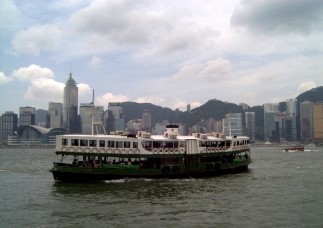
Here is an example from the lancashire-fusiliers website using the url 'https://lancashire-fusiliers.co.uk/asse ... g/hk_5.jpg'
There is a button on the post form for images that will help.
I'll post more tips as we learn more
I thought I'd put some tips here that people may find useful.
Emailing other messaging board members
- You can get in touch with anyone else registered on the board by clicking their name, and clicking 'send email to ...'
- image_2026-10-05_080543031.png (18.43 KiB) Viewed 230 times
If this board puts some people in touch with each other, the board has fulfilled it's role
Images
- Geoff has been testing attaching images to posts (I think he's after my job!
) - seen in his thread here- You can attach an image when making a post, look for the 'attachments' button at the bottom of the page.
- You can also link images from other websites using 'img' tags - to do this you need the URL of the image (to get that, just right click an image > copy image address, then put the image inside
Here is an example from the lancashire-fusiliers website using the url 'https://lancashire-fusiliers.co.uk/asse ... g/hk_5.jpg'
There is a button on the post form for images that will help.
I'll post more tips as we learn more
